Bluetooth Fuzzer (bfuzz) is a tool for discovering implementation errors of Bluetooth BR/EDR (BT Classis) devices by using smart and stateful fuzzing techniques. The fuzzing engine automatically generates possible vulnerable inputs regarding 4 kinds of Bluetooth core protocol specification (L2CAP, OBEX, RFCOMM, SDP) to find known/unknown vulnerabilities in the Bluetooth host stack of target devices.
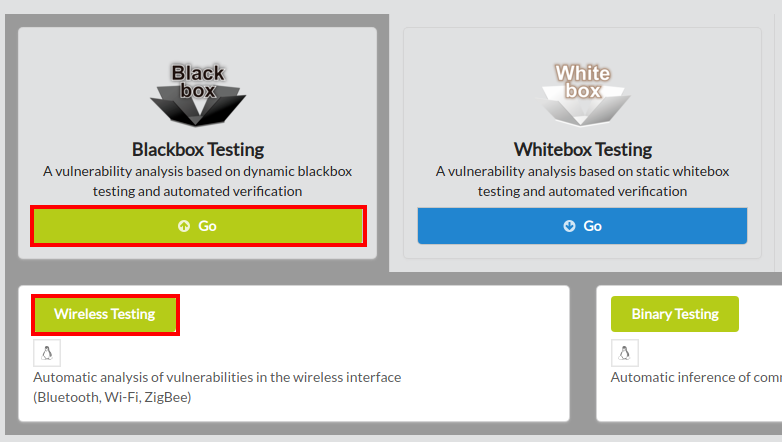
To begin bfuzz, click Blackbox Testing in the main page of IoTcube, then proceed by clicking Wireless Testing.
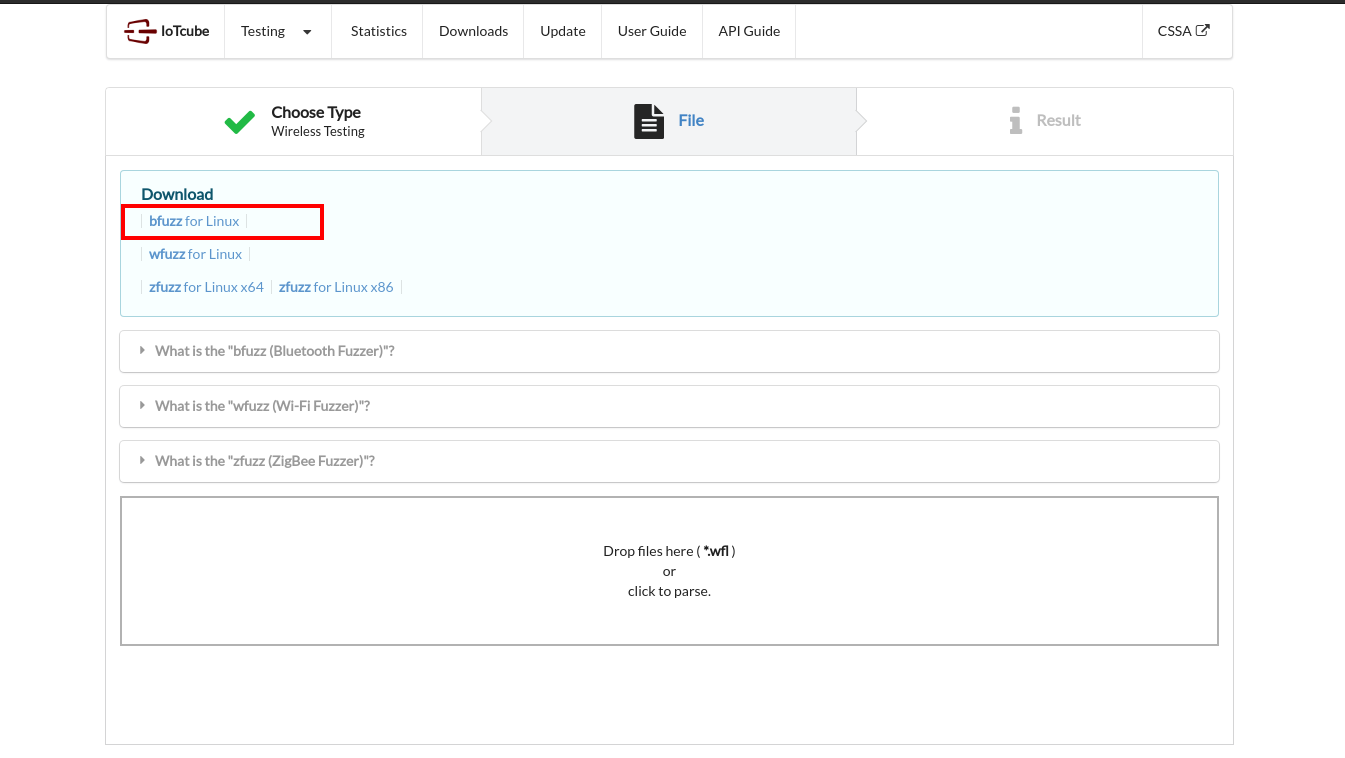
On the following page, download bfuzz, which is a zip containing the fuzzer and packet database.
Linux (32 and 64 bit) is supported at the moment.
Extract "bfuzz.zip" from the previous step.
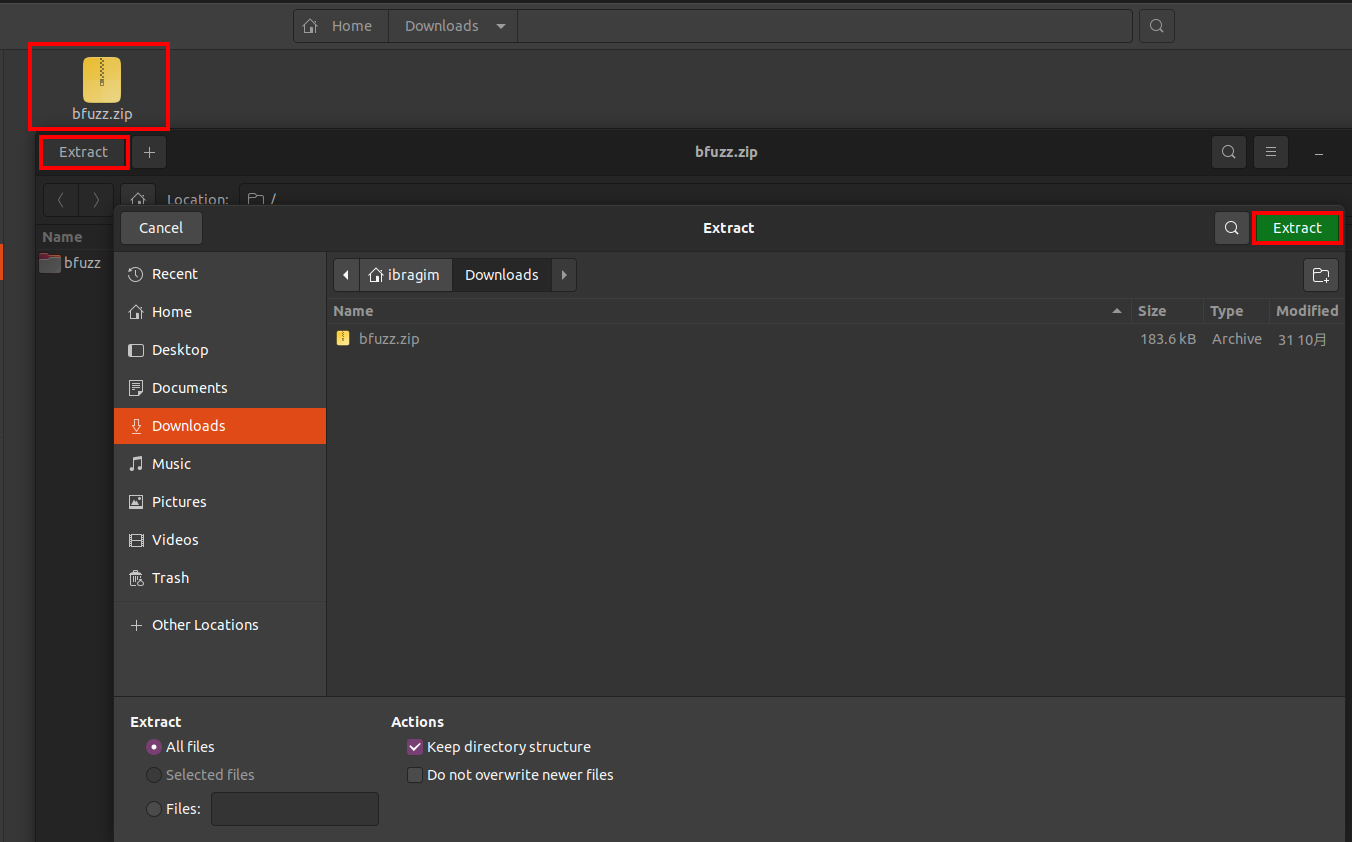
After extracting the package, you will have several files for the fuzzer.
Open terminal, go to the bfuzz directory and run config_bfuzz.sh with sudo command(only once).

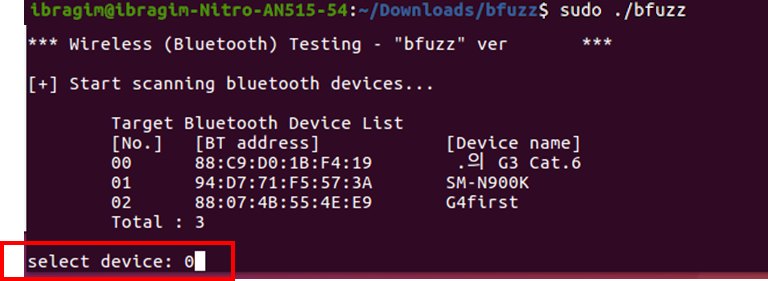
Then run bfuzz with sudo command.

Select any device found via scanning nearby.
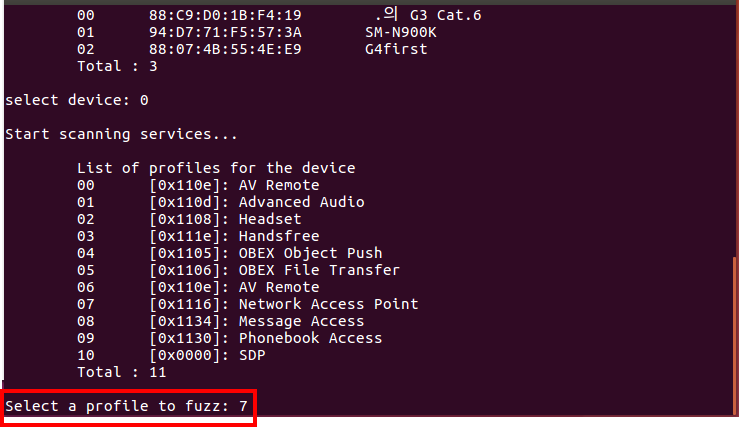
Select a any profile of the target device.
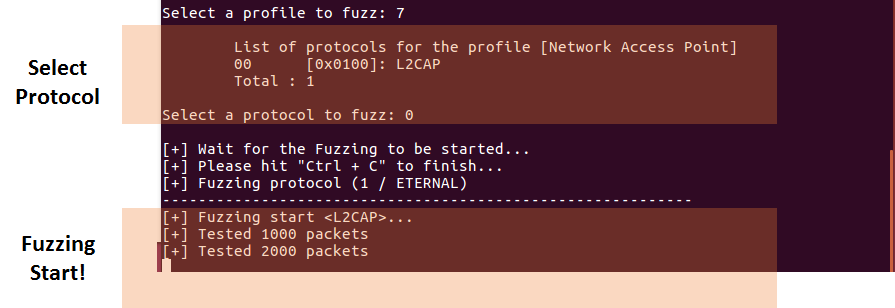
Select a protocol to launch fuzzing. Then it automatically starts! If you want to stop the fuzzing process, press Ctrl + C
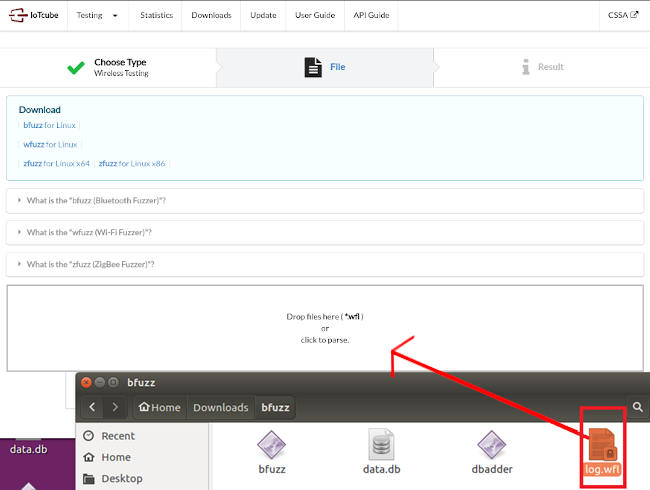
Find the log.wfl file created in the same directory as the fuzzing program and upload it to IoTcube.