HatBOM3 (Merge, Diff) Merge is a tool that can merge two SBoM files or compare their dependencies.
The Merge operation combines the two SBoM files and into a single SBoM file that includes all components and dependency information from both files.
In the case of Diff, it visualizes the dependency tree and shows differences in dependency components and their respective versions present in each SBoM file.
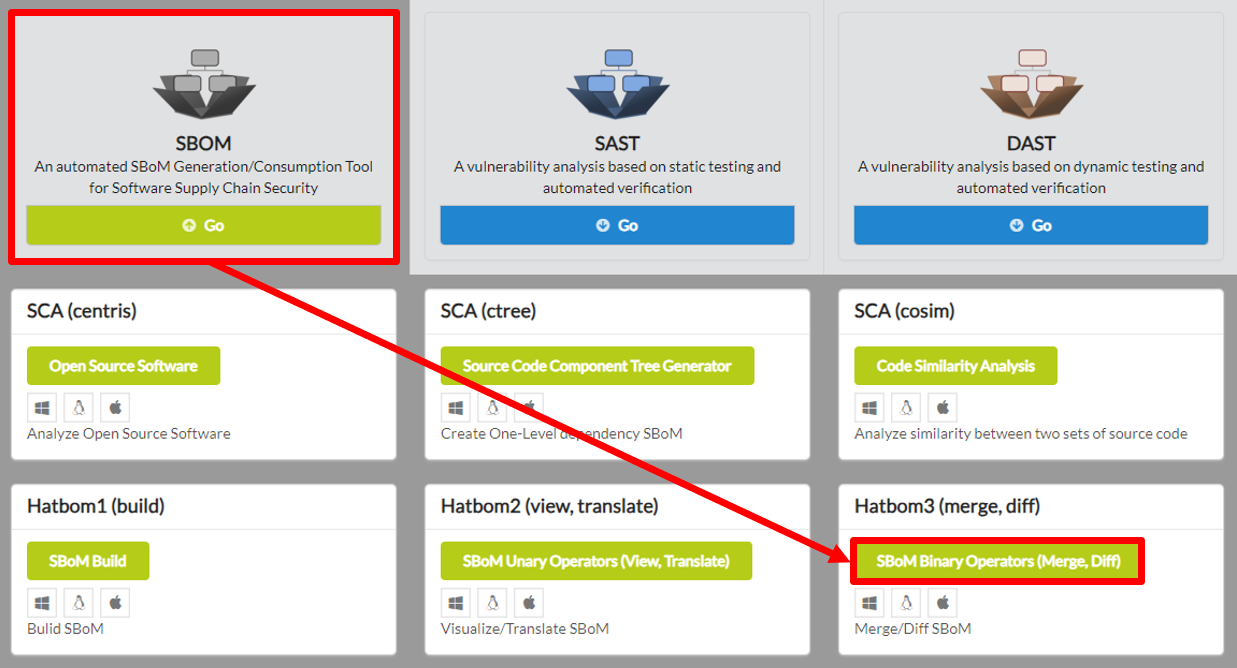
To begin HatBOM3 (Merge, Diff), click SBOM in the main page of IoTcube, then proceed by clicking SBoM Binary Operators (Merge, Diff).
Select one of the Merge and Diff options to choose which operation to use.
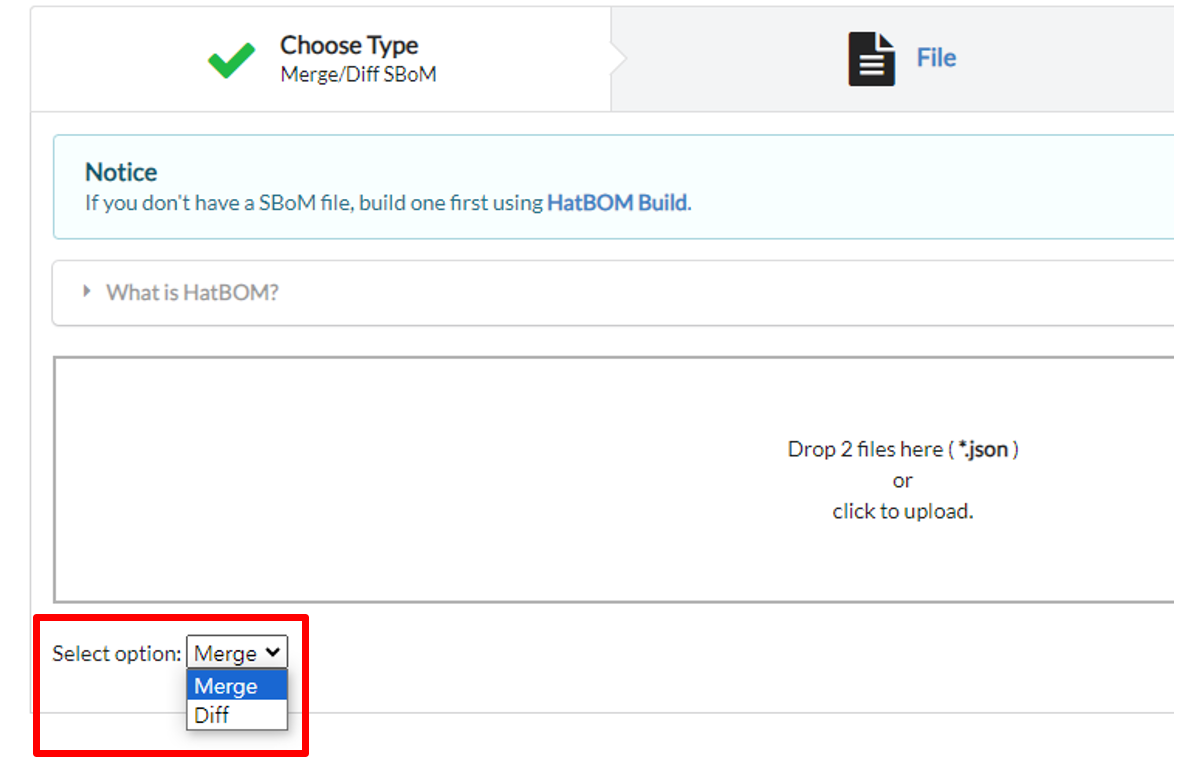
The I/O page requires an SBoM *.json file as input. If you do not possess an SBoM file, create one initially using HatBOM1 (Build).
Upload the two generated SBoM file either by dragging & dropping the file into the upload box, or by selecting from a file dialog.
Note that HatBOM View&Translate only supports SBoM files of CycloneDX and SPDX format.
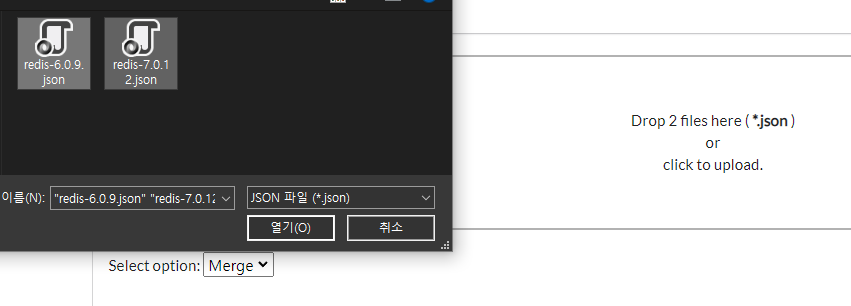
IoTcube automatically proceeds to the result page when the upload is complete.
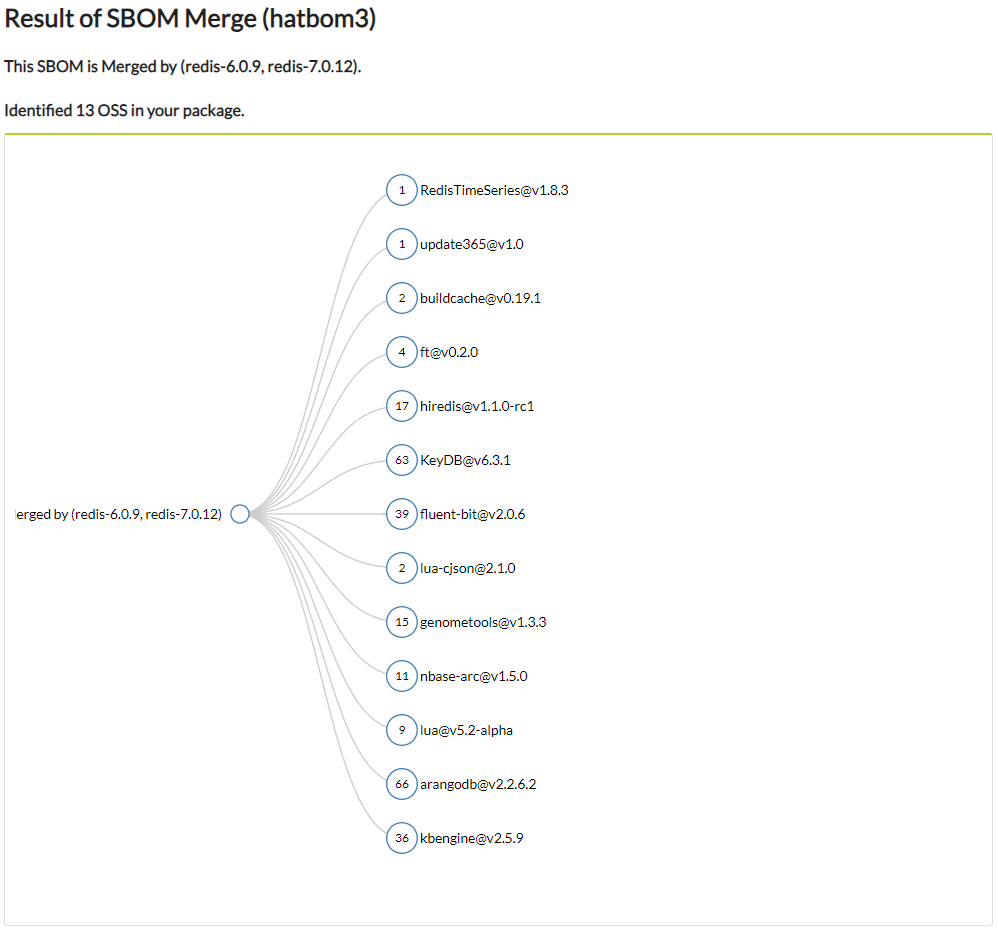
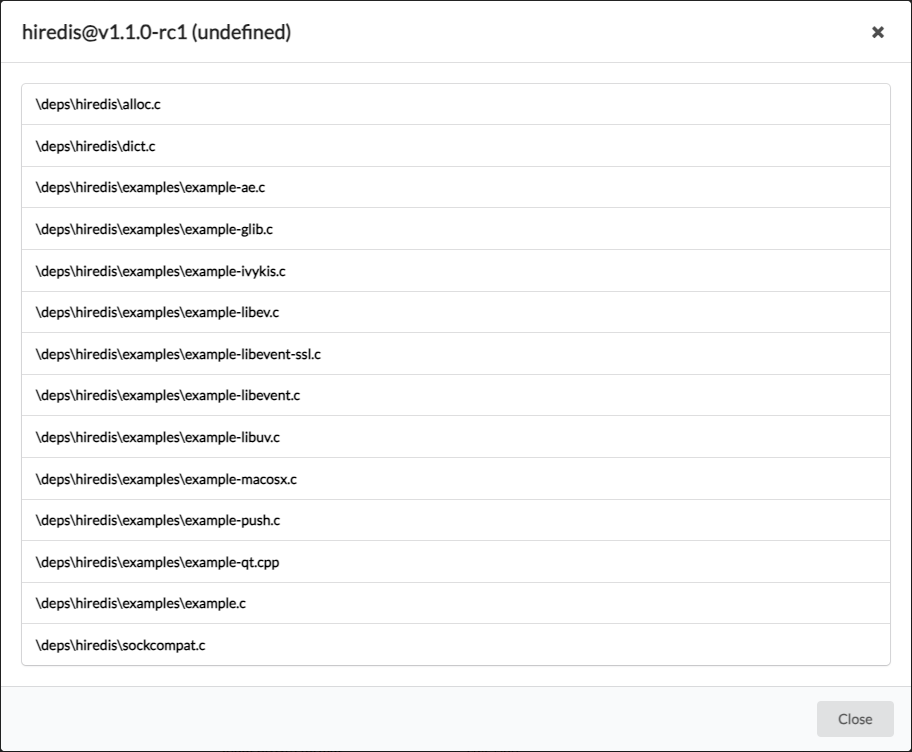
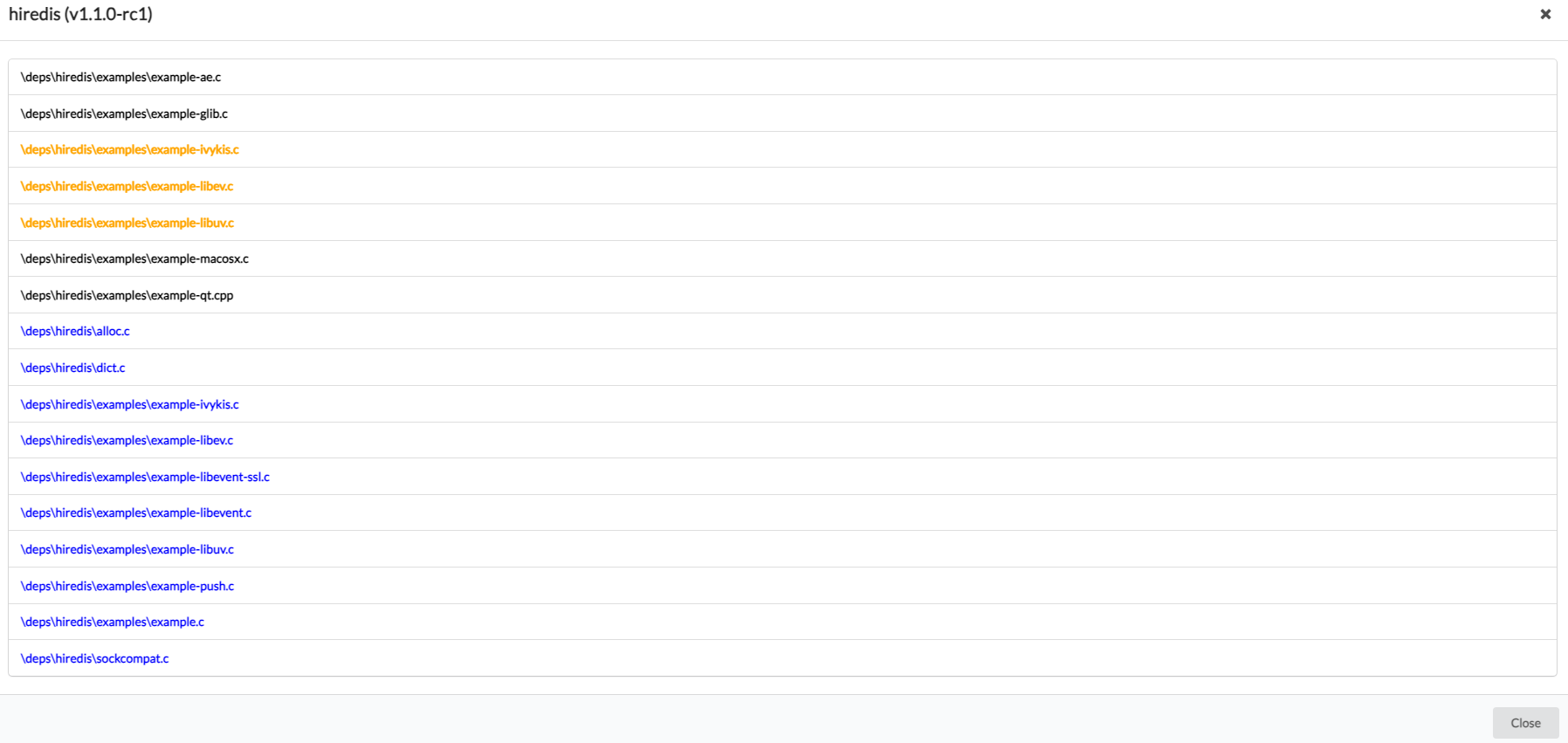
By clicking a node, you can see the files that have dependencies with the selected component.
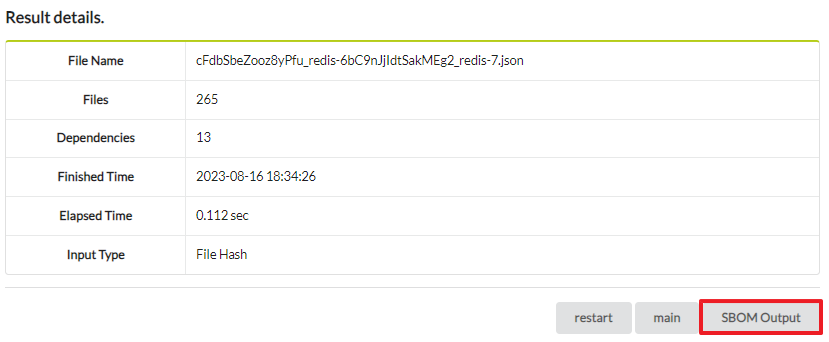
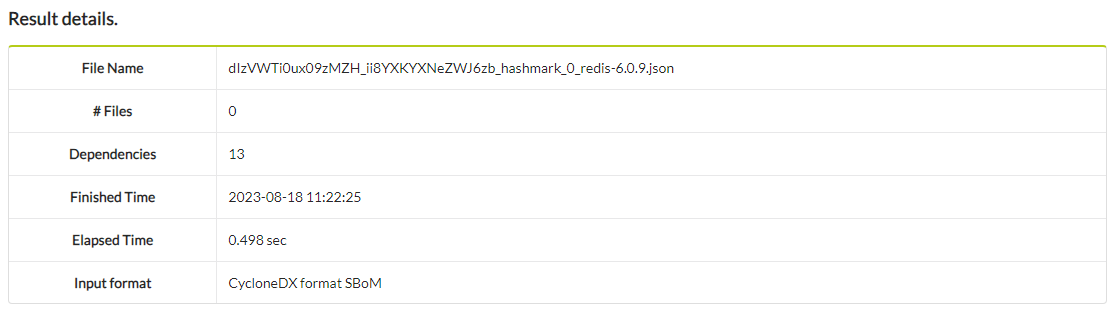
The result page of HatBOM3 (Merge, Diff) also includes a table of result details, along with the downloadable SBoM Output. By right-clicking the "SBOM Output" button and selecting "Save link as another file", it is possible to download the newly merged SBoM as a json file.
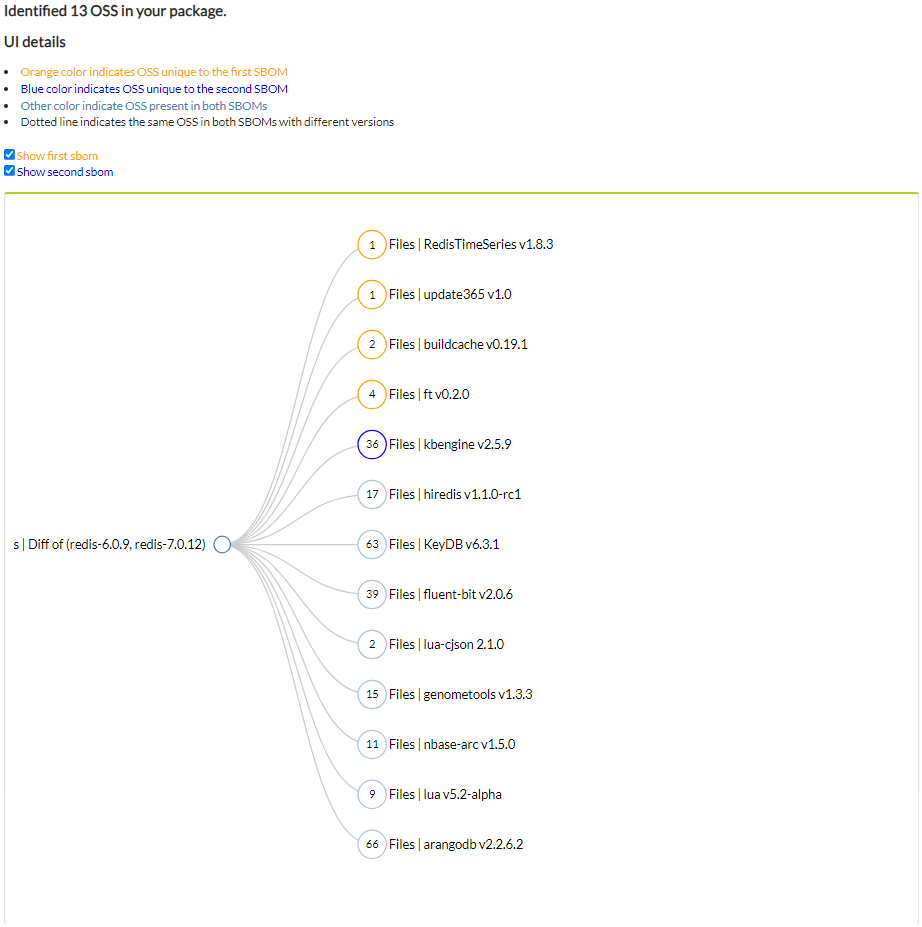
You can click the node to see which files are included in the OSS. Colored nodes represent dependency components that are only present in one of the two inputs. Nodes that are connected to a dotted edge represent dependency components that are present in both inputs, but with different versions. By interacting with the checkboxes above the tree, the user can choose which components they want to see in the visualization.
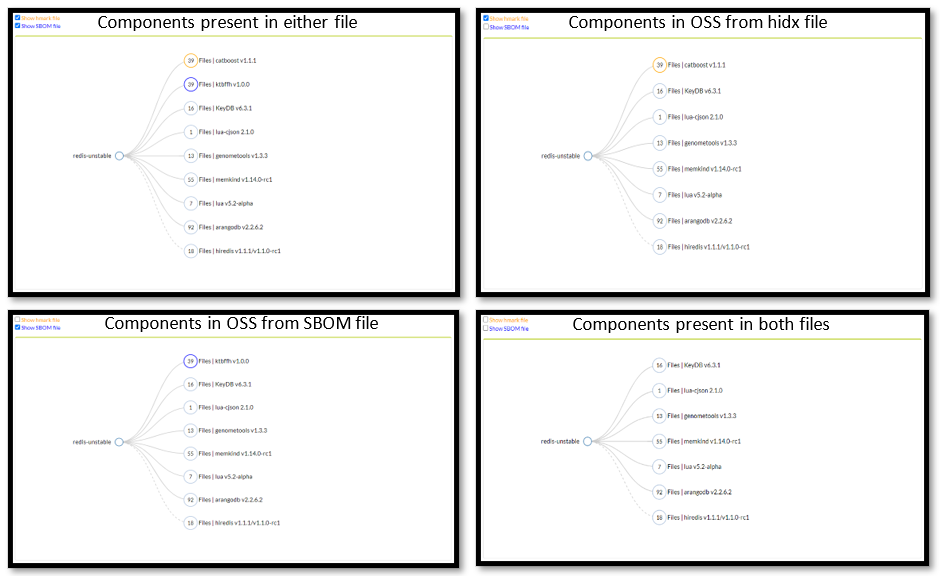
By clicking a node, you can see the files that have dependencies with the selected component. Each colored file path represents dependencies that are only present in one of the two inputs.
Below is a table including the result details. The table shows information such as input file name, format of the input SBoM files, the number of files listed in the SBoM, and more.
The Merge operation takes two SBoM files as input and returns a newly merged SBoM file.
HatBOM includes other operations that can be done using a SBoM json file.