HatBOM4 (Validate) aims to evaluate whether a SBOM's dependency information is identical to the actual dependencies present in the software's source code.
HatBOM4 (Validate) takes in a '.hidx' source code hash file and a '.json' SBOM file and compares their dependency information.
You can build your own SBOM file using HatBOM1 (Build).
Utilization of HatBOM4 (Validate) enables the user to determine whether a SBOM correctly represents the depedencies of a software.
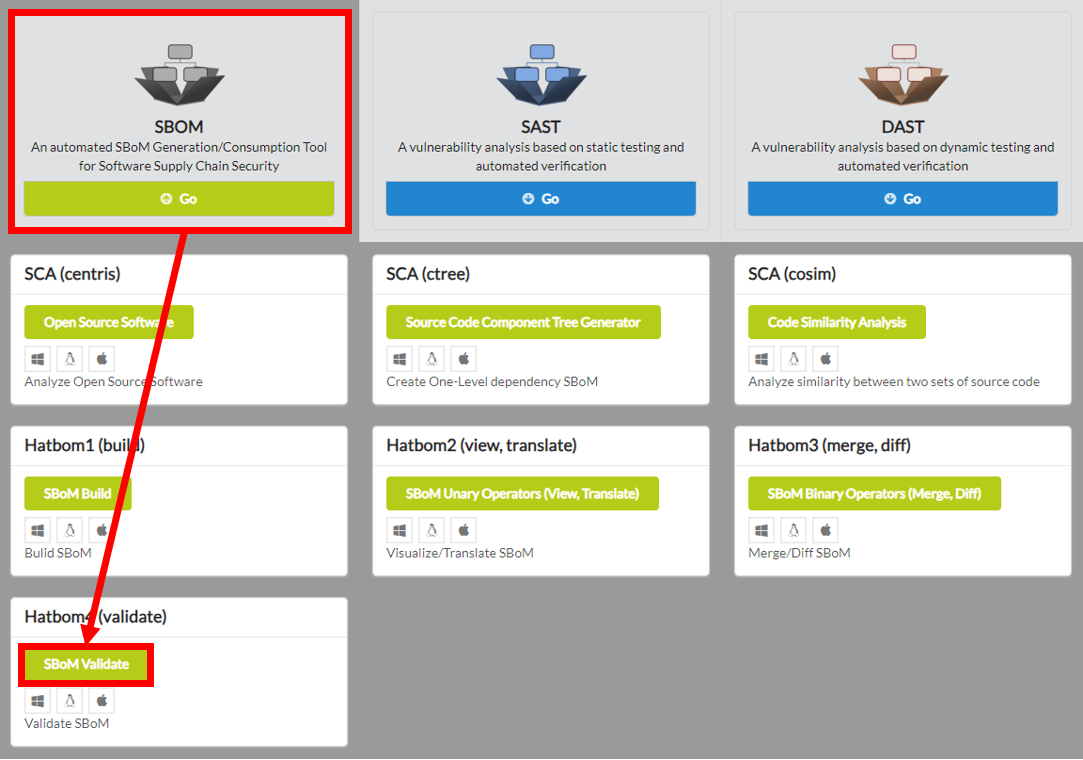
To begin HatBOM4 (Validate), click SBOM in the main page of IoTcube, then proceed by clicking SBoM Validate.
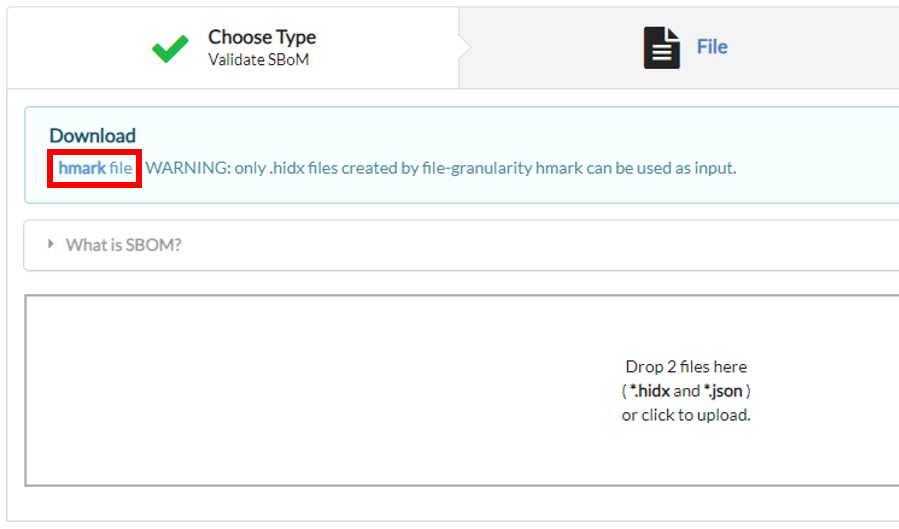
In the I/O page, download hmark-file, which is a file-granularity source code component analysis tool.
Please note that all HatBOM tools only support hmark-file for the time being; using a file created by function-granularity hmark will result in an error.
With hmark_file.py, the python script for file granularity hmark, you can generate a ".hidx" file for your program.
You can generate the file granularity hash file by running the following command:
$ python3 hmark_file.py {PATH TO YOUR PROJECT}
For example, if you want to generate a hash file of a redis-7.0.12 project in the same location as the hmark_file.py file, you can generate the hidx with the following command:
$ python3 hmark_file.py redis-7.0.12The generated hidx will be located at ./res_hmark_file/"hashmark_0_YOUR PROJECT.hidx".

DO NOT rename the generated hidx file; doing so will result in an error.
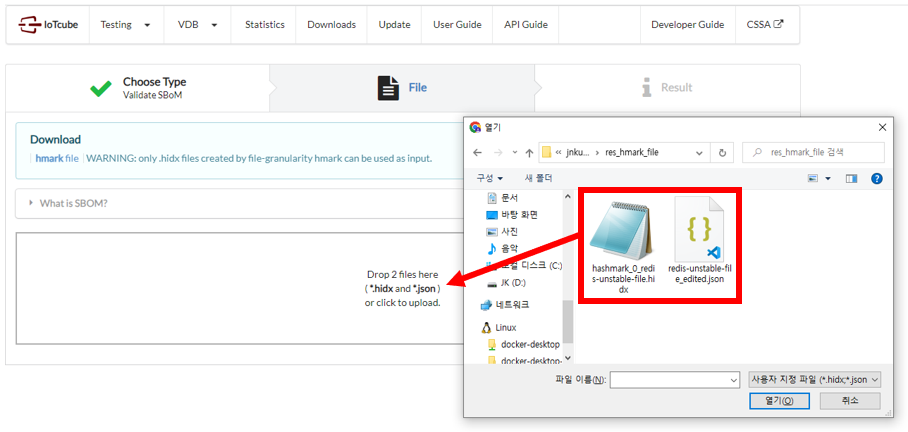
Upload the generated *.hidx file along with the *.json file to be used as inputs.
This can be done by either dragging & dropping the file into the upload box, or selecting from a file dialog.
Please upload the two files simultaneously; attempting to upload the two files one-by-one will result in an error.
Using a *.hidx file created by function-granularity hmark or a renamed *.hidx file will also lead to an error.
IoTcube automatically proceeds to the result page when the upload is complete.
The result of HatBOM4 (Validate) shows whether the dependency information in the SBOM input is identical to that of the hidx input, alongside a visualization of the dependency components.
If the SBOM output contains different dependency information as the hidx input, the user is notified that the "SBOM file and source code are not the same".
The result page also includes a visualized tree showing the OSS, dependency components and their respective versions.
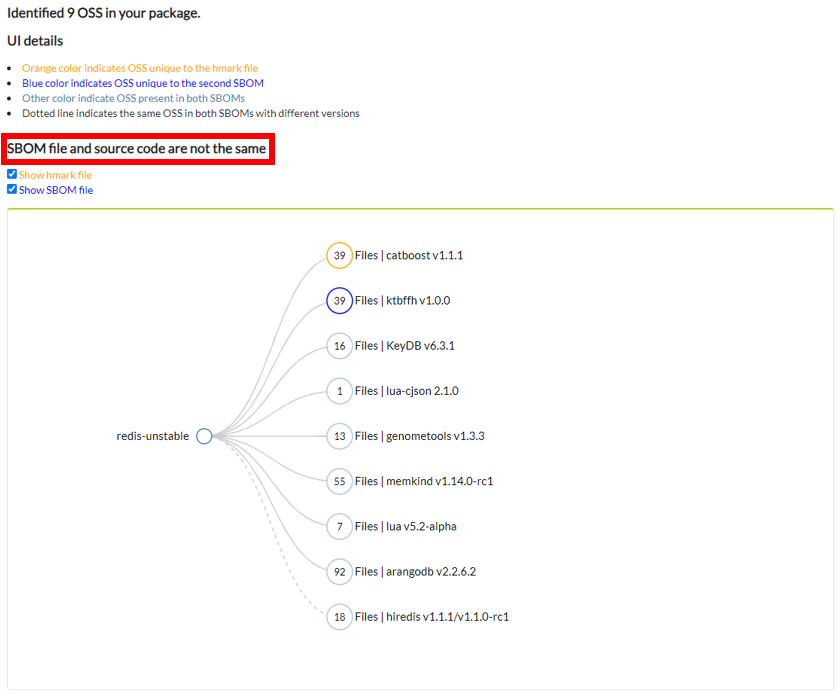
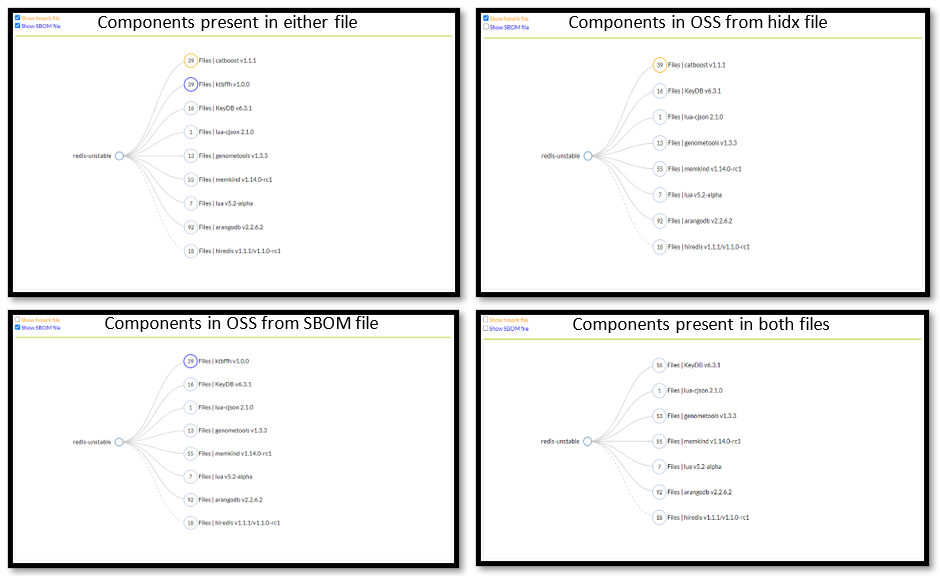
Colored nodes represent dependency components that are only present in one of the two inputs. Nodes that are connected to a dotten line represent dependency components that are present in both inputs, but with different versions. By interacting with the checkboxes above the tree, the user can choose which components they want to see in the visualization.
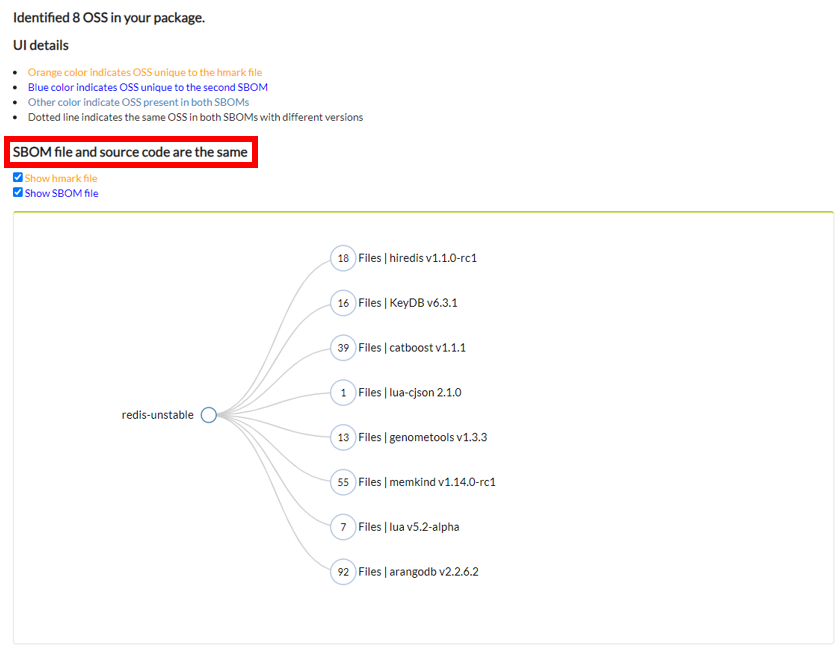
If the SBOM output contains the same dependency information as the hidx input, the user is notified that the "SBOM file and source code are the same". Because the dependency information are identical, there should be no orange or blue colored nodes in the tree.
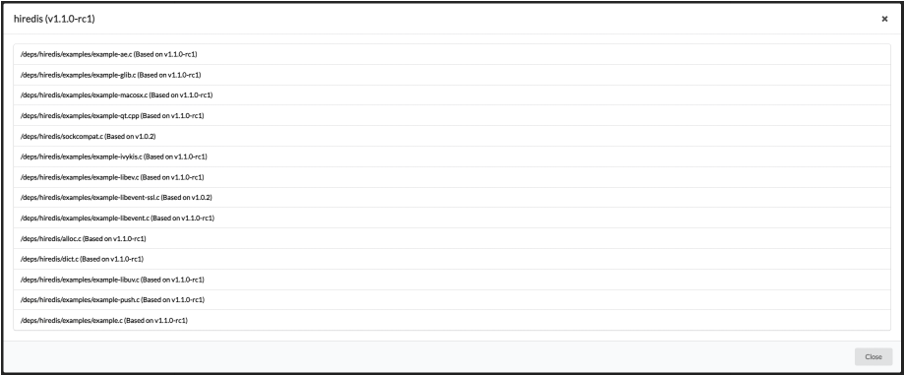
The visualized tree shows the OSS, dependency components and their respective versions. By clicking a node, you can see the files that have dependencies with the selected component.
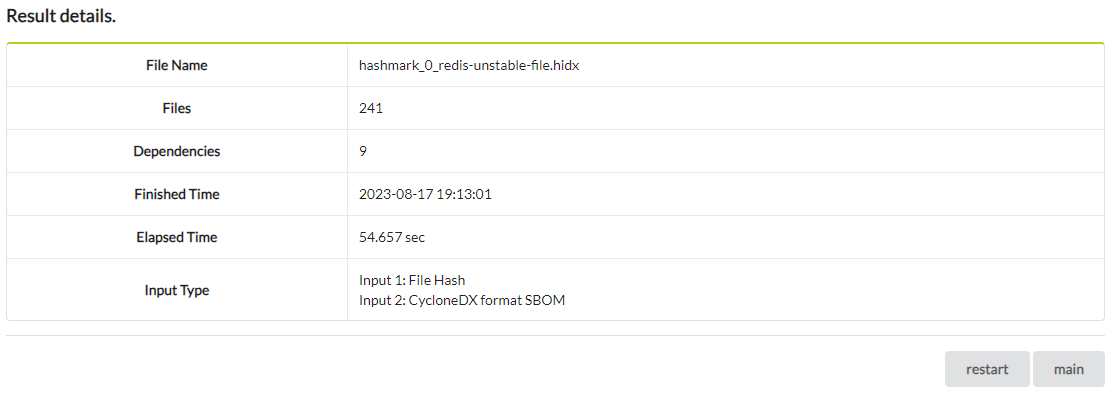
Below is a table including the result details. The table shows information such as input file name, format of the input SBoM files, the number of files listed in the SBoM, and more.